Showing posts with label Recover Deleted Files. Show all posts

9/22/13

[Guide]:How to recover deleted SMS from iPhone and Android Devices


Recently, we showed you How to recover deleted files from SD card. But over the past few days we got many mails requesting to explain in a simple way to recover deleted Text messages on Android and iPhone.

That's why today I want to explain how to recover deleted Text Messages(SMS) on a variety of operating systems and models of smartphones. To be clear, this is not always possible but trying things is not harmful, so roll up your sleeves, grab your phone and try to retrieve your messages by following the "straight" I'm about to give you.

Recover deleted messages or SMS on android and iPhone

If you want to discover how to recover deleted SMS and use a smartphone powered by Android, the wisest and most effective thing you can do is to prevent the accidental deletion of text messages making backup copies. To help with this, I suggest you use SMS Backup & Restore, an excellent free app for Android that allows you to create backups and restore SMS extremely easy and fast.

Connect to the page of Google Play Store dedicated to SMS Backup & Restore and click on install button twice to install the application on your mobile. When the operation is complete, start the application via its popup menu icon of Android and skims the Backup button to create a backup copy of all SMS are saved on your phone (you will need to assign a name to the file that you want to create).

After performing the backup, you can restore all your SMS on your smartphone simply by tapping the button Restore, putting the check mark next to the backup file to restore and pressing OK twice in a row. If you do not want to restore all messages, but only those received and sent from a certain day, put a check mark next to Restore only the messages received / sent by specifying the date you want in the menu below.

recover deleted messages using SMS Backup and Restore


Even iPhone users can retrieve deleted messages from your mobile phone, just use iTunes backup stored on PC (read how to connect iPhone to iTunes to learn more). In this sense, there are two paths that you can take: the first is to restore the iPhone by selecting one of the backup saved on your computer, the other instead allows you to extract the text of SMS from iTunes without "touching" the iPhone.

If you are interested in this option, you must locate the iTunes file that contains the SMS text stored on your computer. To do this, you must go to one of the following locations:

  • If you're running Windows 8, Windows 7 or Vista: C:\Users > [your username] AppData Roaming > > > Apple Computer MobileSync Backup > > > [backup folder from which to extract the SMS].
  • If you're running Windows XP: C:\Documents and Settings > & [your username] Application Data > > Apple Computer MobileSync Backup > > > [backup folder from which to extract the SMS].
  • If you're using a Mac: User > Library Application Support > > MobileSync Backup > > [backup folder from which to extract the SMS].
At this point, looks for a file whose name starts with 3d (e.g. 3d0d7e5fb2ce288813306e4d4636395e047a3d28) and copy it to your desktop. Then connected to the iPhone SMS website, click Choose File / Browse and select the backup file you just copied to iTunes on the desktop.

Put the check mark next to the file format in which you want to read text messages (MS Excel, HTML or PDF) and click on the Submit button to download a document with all conversations extracted from your iTunes backup organized by number.

Recover Deleted Messages on iPhone and Android devices

DOWNLOAD | SMS Backup & Restore

DOWNLOAD | iPhone SMS

9/21/13

How to recover deleted files from SD card


Recently, we showed you How to recover deleted files from Android Devices. But over the past few days we got many mails requesting to explain in a simple way to recover deleted files from SD card, so we decided to write a post that can help many smartphone users.

If you've accidentally deleted files that are stored on a SD card without creating backup copies and you do not know how to recover them? At this point, your only hope is called TestDisk.

TestDisk is a free program that allows you to recover all deleted files from SD cards in no time (as long as they have not been overwritten with other data). It has a graphical interface, it only works from the command line, but if you follow my instructions on how to recover deleted files from SD be able to use it quite easily.


If you want to learn how to recover deleted files from SD, the first step you need to take is to connect to the Internet site of TestDisk and click the link Windows to download the program on your PC.

When the download is complete open, double clicking on it, the file you just downloaded (eg testdisk-6.14.win.zip ) and estraine the content in any folder. Enter, therefore, the SD memory card from which you want to recover the files in the PC (you can use a MicroSD-SD adapter in the case of smaller cards) and start the program testdisk_win.exe. Click on Yes and it will open a Command Prompt window.


Now, to recover deleted files from SD press Enter on your keyboard and select the unit on the memory card reader on your computer (eg Multiple Card Reader ), just use the arrow keys and press Enter. Next, select the item Intel , go to Advanced and press Enter to select the partition of the SD from which to retrieve the data (usually there is only one).

At this point, you should find yourself in front of a list containing the names of deleted files from memory card, highlighted in red. Select one of the documents to be retrieved and press C on your keyboard to copy it to a folder of your choice (press C to save it in the root directory of TestDisk). Repeat with all the files to recover, and you're done.


If the memory card you want to recover deleted files is that you use in your Android smartphone, you can do everything from the phone using the free application Hexamob Recovery Lite. I explained to you in detail how to use it, in my guide to recover deleted files.

You can try to restore deleted files from SD memory cards, USB hard drives and computer disks using the free software Recuva. You can find instructions on how to use it, in my tutorial on How to Recover Deleted Files using Recuva.


DOWNLOAD | TestDisk

7/9/13

How to recover deleted files from iPhone and Android Devices


Recently, we showed you how to recover deleted files from PC using Recuva. But  we are getting many mails requesting us to explain in a simple way to recover deleted files on Android devices and iPhone so, we decided to write a post on the topic of user's choice.

If  you have accidentally deleted a picture or video from your smartphone? Unfortunately it happens, but you don't have to despair. There are many solutions that allow you to recover deleted files from iphone and Android devices that can remedy even the solutions that seem more desperate.

Freak stuff? Absolutely not, they are all very easy-to-use applications. If you want to know more, take five minutes of free time and learn how to recover deleted files from iphone and Android devices with one of the solutions that I'm about to show you.Whether you have an iPhone or an Android device, you should be able to reach your goal without too much trouble.


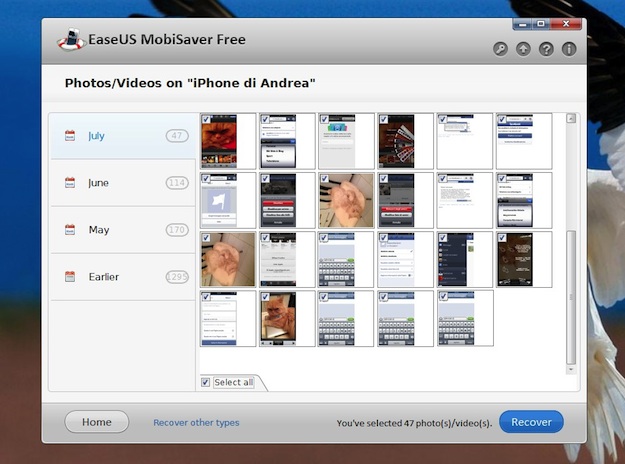
If you want to learn how to recover deleted files from iphone and Android devices and you have an iPhone, you can rely on EaseUS Free MobiSaver. This is a free application that uses the iTunes backup to recover accidentally deleted files from the iPhone and other Apple mobile devices. To use it, you must have the latest version of iTunes on your computer, with at least one backup.

To download EaseUS Free MobiSaver on your computer, go to the program's website and click on the Download button. When the download completes open, double-clicking on it, the file you just downloaded (ems_free.exe) and, in the window that opens, click on Yes and then click Next. Accept the terms of use of the program, putting the checkmark next to I accept the agreement and click on Next twice and then click Install and Finish to finish the installation process and launch EaseUS Free MobiSaver.

Now, to recover deleted files from your iPhone, select from the home screen of EaseUS MobiSaver the type of data to search: contacts, Photos/videos or Note/reminder. Next, click on the Start button (located in the lower right corner), connect iPhone to your computer and wait for it to be detected properly.

At this point, click Next, select the iTunes backup to be used for data search and starts scanning its contents by clicking on Next. When the operation is completed (might take a few minutes), put the check mark next to the files you want to retrieve and click Recover to choose the folder where you want to export. You will be asked to register the program with a serial number, get for free by logging in to this page and fill out the form in it.


If you have an Android phone and would like to know how to retrieve deleted files from iphone and Android devices, I suggest you take a look at the Hexamob Recovery Lite application  that is free in its basic version but to work requires a system unlock.

Once you have root on Android and installed Hexamob Recovery Lite, to use the app and recover deleted data from your phone does not need to do is to press the button Selective recovery and select the fields in the Search and Save to , respectively, the location where look for the files to be recovered (eg, the internal memory of the phone) and when save after recovery (eg the memory card inserted in your smartphone). It is not recommended to select the same path as the source and destination.

Next, press the Next button and wait for the application to scan your phone (or memory card) to search the recoverable files (this may take several minutes). When finished, select the deleted files you want to restore, and tap on Recovery to save them in the destination path. Once restored, the files recovered by Recovery Hexamob Lite are saved in section Recovered of the app.

If you prefer, you can try to recover deleted files from your smartphone even through your PC. Just use the free application Recuva setting as a unit in which to search the drive for the mobile phone. You can find a complete guide to using Recuva in my article on how to recover deleted files, but remember: deleted files are not always recoverable. If the portion of memory in which they were housed is rewritten,it becomes irrecoverable or is damaged and therefore unusable.

DOWNLOAD | EaseUS Free MobiSaver (for iPhone)

DOWNLOAD | Hexamob Recovery Lite (for Android)

6/16/13

How to Recover Deleted Files From PC using Recuva


Suppose you have deleted a from your computer,by mistake that you shouldn't have deleted. And now what do we do? Don't worry about that, just try to install Recuva immediately. Recuva is a freeware that allows you to recover deleted files from your PC and external devices through simple wizards.

If you want to learn how to recover deleted files with Recuva, the first step you need to do is connect to the Internet, goto the Recuva's site and download it to your PC by clicking on the green button and then on the item Piriform.com.


When the download completes open, double-clicking on it, the file you just downloaded (e.g. rcsetup146.exe) and, in the window that opens, click Next, Install and finish to complete the installation and start Recuva.


In the window that opens, select the type of file you wish to retrieve (pictures, music, documents, videos, compressed, Email or all files) and click the next button.

ALSO READ: How to Cancel/Remove App updates in Android and iPhone

Put the check mark next to the location where you want to search for deleted files (not sure for all positions, on multimedia card or iPod, in the documents, to the trash, or to a specific location to be designated through the appropriate text field), click again on next and then press Start to start the search for deleted files.


Wait for the search procedure is completed and the list that appears, put the check mark next to the name of the file you wish to retrieve. Click then on the button Retrieve ..., select the folder where you want to save the file and click on OK twice to confirm the operation.

ALSO READ: Installation Guide: How to install Ubuntu from USB

Always remember to consult the icons that are alongside the names of the files before proceeding with the restore operation. In fact, only files with the green icon can be recovered to 100%, while those with the orange icon may be damaged. Those with the red icon on the other hand, are almost completely unsalvageable.


DOWNLOAD | Recuva