Showing posts with label iPhone. Show all posts

3/27/14

Top 10 Best Rated Free iPhone Apps of 2014


In the previous post we have discussed about the best music apps that are available in Apple Store.Here, in this article we present you the Top 10 Best Rated apps that are available in the Apple Store for free,which you might be missed to install in your iPhone.

Best Rated Free iPhone Apps

Bill Guard:

Bill Guard is a free app that allows you to manage and track all your financial statements easily. Once you have this app in your iPhone, there is no need for you to worry about your credit card statements.There is no other app available in the Apple store that provides sucha useful service.It is a must install app for all the business people. 


DOWNLOAD | Bill Guard

EasilyDo:

EasilyDo app is like your personal assistant.This app can be connected to all the services running on your iPhone like email,calender,Facebook etc, it looks for all the tasks that are to be done and it will do it on your behalf.
For example, you can schedule a birthday post on one of your friend's facebook timeline and EasilyDo will complete the task at the scheduled time on behalf of you. It is an awesome app that saves your time. It is available in Apple Store for free. 


DOWNLOAD | EasilyDo

Find My iPhone:

Find My iPhone is a must install app for all the iPhone users. It comes in handy when you forget your iPhone placing it some where. It is very easy to set up a free account and you can locate your iPhone within few seconds.It is a free app.


DOWNLOAD | Find My iPhone

Adobe Photoshop Express:

Adobe Photoshop Express is also a free app that enables you to edit your favorite pics right away from your iPhone/iPad itself, as shown above.


Around Me:

Around Me is another free app that allows you to find local places like bars,restaurants,hospitals,banks etc around you.This app uses Google Maps for its results.Around Me is a perfect app for travelers.


DOWNLOAD | Around Me

Wikipanion:

Wikipanion is also a free app.Its like a wikipedia for your iPad or iPhone,it works good on your iPhone but it is a dedicated Wiki mobile app for your mobile.


DOWNLOAD | Wikipanion

Run Keeper:

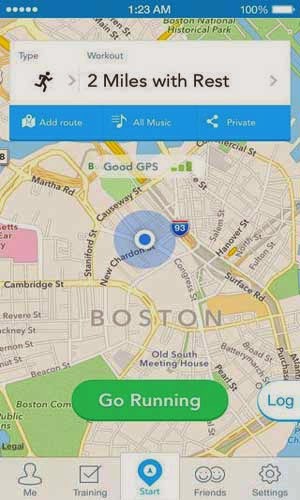
Run Keeper is another free app that keep track of your jogging and cycling routes,amount of calories burned etc. It is a recommended app for the people who like to be fit and healthy.

DOWNLOAD | Run Keeper

Shazam:

Shazam is one of the music apps that can listen for a music clip playing and it can search and tell you which music track is being played.The results of Shazam may not be correct all the time but it's worth a download.This app is available in Apple Store for free.


DOWNLOAD | Shazam

OoVoo:

OoVoo is another free app that allows you to make voice calls,video calls,group calls and IM. It is available on major platforms like iOS,Windows,Android. This a best app for the people who love to stick with their buddies.


DOWNLOAD | OoVoo

Pocket App:

Pocket App is also called as Read it Later, which allows to save you favourite webpages so that you can read them later. It does not save the advertisements on those webpages. This app is available for free in Apple Store.  


DOWNLOAD | Pocket App

3/24/14

Best Music Apps for iPhone & iPad


Music has been a part of our life with the advancement of smartphones. When there is no one to give you a company, music is always availabe for you to pass the time. Music is everywhere, in schools,movies,stores etc. Music is a universal language and you dont have to know about the lyrics to understand a songs meaning.


Music lovers would be glad to know that App Store has a huge collection of brilliant apps that will make your listening much more interesting. Here are the Best Music apps that are available in App Store.

Songkick:

Songkick is a free app that allows you to access music libraries in your device.The advantage of this app is that you can find out the details about your favourite band's events. This app keeps you updated with the latest concerts that are going on in your area.This app is best for the people who love concerts.

DOWNLOAD | Songkick

Listen:

Listen is another free app that allows to listen to music while riding bike. The best part of this app is that,it is guesture based app and you don't need to touch your iPhone/iPad to change the songs, you can swipe left or right to play,replay or to skip a song. To add a music library, all you need to do is to swipe up. TO access the music library,swipe down.

DOWNLOAD | Listen

Google Play Music:

Google play music is a free app and it is a competitor to Apple iTunes Radio.This app allows users to access customized Radio stations and also allows then to create unlimited album list.

DOWNLOAD | Google Play Music

Spotify:

Spotify is another free app which allows you to listen to radio music on your device.The free version contains ads. If you want the app without ads then you need to go for the premium.This app can also be integrated with Facebook and you can share music to other subscribers as well.

DOWNLOAD | Spotify

CanOpener:

CanOpener is a paid app which allows you to control the settings that you have in your music player like equalizer,crossfeed and dosimete.While listening a song in your headphones, you can increase bass as well.It is available in the App Store for $ 0.99

DOWNLOAD | CanOpener

Stezza:

Stezza is also a paid app that allows you to customize the display of your music player in your iPhone/iPad. You can change the music controls into buttons so that it would be easy for you.It is the best music playing for cruising. It is available in App Store for $ 0.99

DOWNLOAD | Stezza

The above list of music apps would enrich the spirit of music. Grab anyone of these apps and enjoy..:)

2/25/14

Best Video Editing Apps for iPhone & Android Smartphones


Video editing apps for smartphones have grown hugely popular in the recent months.This is due to the fact that more and more people are relying on their phones to create videos, which has done away with the need for camcorders. Of course, simply shooting video isn't enough for everyone- to truly get a message across, you may need an editing program. Some great free video editing apps have stepped up to fill the need. There are a huge number of video editing apps for iPhone and Android smartphones that are extremely popular and include an array of great features. If you own one of these types of phones and enjoy shooting your own video, you should certainly explore these apps if you wish to take your love of video to the next level.

Magisto — Magical Video Editor

Magisto is a free video editing app for both Android smartphones and iPhone. It is easy to use and makes it fun to automatically edit your videos and photos so that you can share them with others. Additionally, you can create your very own movies with the app by using a minimum of five photos. You can even save all of your movies to cloud storage within the app if you have a premium subscription.

DOWNLOAD | Magisto (iPhone) | Magisto (Android)

Lumify Video Editor

Lumify Video Editor is a free video editing app for iPhone that allows you to create and edit your own video. Videos made and edited through Lumify are of professional quality and can be shared on YouTube, Instagram, Facebook and other social networks. It is easy to use, fast and powerful. You can preview all your videos and add cool effects to them as well. 

DOWNLOAD | Lumify (iPhone)

Splice — Video Editor (Free)

Splice is a nice video editing app for the iPhone that allows you to put together photos and videos in the way that you want. You can add music, sound effects, filters and other image effects to each video as well. The app is easy to use and uses a simple drag and drop method for creating and editing your videos. 

DOWNLOAD | Splice (iPhone)

Video Editor FREE

Video Editor is a great video editing app for both iPhone and Android that allows you to create and edit videos. You can add music and make your clips into music videos, share videos to YouTube, Facebook and other social networking websites, merge several videos into a single file and much more. 

DOWNLOAD | Video Editor FREE  (iPhone) | Video Editor FREE (Android) 

RECOMMENDED: Best Google Apps for Android Smartphones 

Video Editor: All in One

Video Editor: All in One is a free video editing app for Android smartphones that is considered the best for editing videos on the platform. You can trim your videos down, add or remove music and effects and convert your videos into a variety of different formats, add your voice to videos and much more. 

DOWNLOAD | Video Editor: All in One (Android)

mVideoCut — Video Editor

mVideoCut  is free video editing app for Android devices and is essentially a free cloud based services for your videos. In addition, you can edit videos with music, filters, colors, trim them at the beginning or end and a whole lot more.

DOWNLOAD | mVideoCut (Android)

With all these great video editing apps to choose from, there’s no reason you can’t get started editing your very own videos today. Whether your interests in are simply for comedic value or to boost your business, you are guaranteed to find an app that is perfect for you. Feel free to leave your comments below.

Lisa West is a web designer and technology writer from Tucson, Arizona. Her interests include video production, information security, and mobile apps.

11/22/13

3 Things to do before Moving to a New Phone


Buying a smartphone has become a very personal and empowering experience; the phone we carry reflects our image, aspirations, pass-times and social habits. So it is no wonder that each year, more than 1.6 billion new cell phones are sold, and the average American cell phone is replaced every 22 months. You probably don’t realize how much personal information is on your old device; all your old emails, text messages, contacts, GPS locations, photos, videos (the list goes on and on). None of this information should ever be allowed to end up in the hands of a complete stranger.


So, what should you do with your old phone when you get a new one? There are plenty of options these days. You can donate it, sell it, keep it as a backup or even recycle it. However, it’s extremely important to make sure all personal information is erased and inaccessible before you dispose of it.

Here are some simple steps to help you clean your phone:

1. Backup your data

Firstly you need to make sure you backup all the information (assuming you want to keep it)
Remember that in Android devices there may also be a MicroSD card that has data stored on it. I recommend you simply remove the SD card and keep it. For the data that is on the internal phone memory you can do the following:

For iPhone:

Connect it to your computer and backup the Phone > in iTunes find your device on the navigation bar and in the summary section you can run a backup.
  • If you want all the information to be visible individually on your computer so you can view and edit the files then you should “sync” the data; you can do these for individual types of files in the “Info”, “Apps”, “Music”, “Movies”, “ TV Shows”, “Podcasts”, “Books”, “Photos” categories in iTunes.

For Android:

You should synchronize your contacts, calendar etc with your Google account, and can load your device as an external drive by plugging a USB cable into your computer, from here just drag and drop the files you want to save to a folder on your computer.
  • You can also install a backup app to keep a copy of your important files.

ALSO READ: How to recover deleted SMS from iPhone and Android Devices

2. Stop Synchronization

Once you’ve saved your important data make sure you disable any automatic synchronization that you may have set up. This will avoid any information being transmitted after you have backed it up creating a gap in the data. This includes any services you may have subscribed to that link directly to your unique device.

3. Wipe the device

To wipe an iOS gadget:  

Go to Settings>>General>>Reset. Tap Erase All Content and Settings and then push the ominous red Erase button. Depending on your device this could take a few minutes or a few hours. Make sure the gadget is plugged in or has a full battery before you begin.

For Android Devices: 

For versions before Android 4.0, press the Menu key from the Home screen and select Settings/Privacy/Factory data reset. You'll get a warning screen. Scroll toward the bottom and tap "Reset phone." If you also have an SD card in the phone (and don't want to use the data in your next phone), also make sure to check the box next to "Erase SD card." For Android 4.0 or later, go to Settings and look for "Backup and reset." Tap that, and then, on the next screen, tap "Factory data reset".  You'll get a warning screen along with a list of all the accounts you are currently signed into.

Whether you have state secrets or just a few personal memories on your phone, making sure they don’t end up in the hands of strangers is the right thing to do. So take a moment and wipe your old phone before you get rid of it.

ALSO READ: How to recover deleted files from iPhone and Android Devices

About Author: Greg Boyle is Senior Global Product Marketing Manager of Consumer Mobility at Trend Micro. He is responsible for Trend Micro’s efforts to educate and secure the mobile lives of consumers.

10/11/13

How to block websites on iPhone


You need to give your iPhone to your younger brother and do not want using it because your brother may visit certain websites? Nothing impossible, indeed. Thanks to the latest iOS operating system versions, the iPhone finally has a feature that allows you to restrict Web browsing by setting lists of sites to block.

If you want to find out how to block websites on the iPhone by using it, please follow the instructions you find below and try to put them into practice. I assure you that it is really easy to set up this type of restrictions. In addition, by enabling a special function, you can even restrict browsing to a restricted circle of websites selected by the user (i.e. yourself). Here's everything you need to know.


Before we see in detail how to block websites on the iPhone, you must make sure that your "melafonino" has iOS 7 installed in it. To do this, go to the phone Settings (pressing on the icon on the home screen) and select General > About from the menu that appears.

If the version field are written 7.xx, means your iPhone is already equipped with iOS 7. Otherwise, you must upgrade the Terminal following the directions that are in my guide on how to install iOS 7. It is a very simple procedure which does not involve the loss of any data or any app. However, keep in mind that iOS 7 cannot be installed on earlier iPhone models to iPhone 4.


Having iOS 7 installed on your device, you can block websites on the iPhone by going into Settings> General > Restrictions and pressing Enable Restrictions button. Next, type a four-digit PIN with which to protect the settings of iOS (so that they cannot be modified by unauthorized persons), scroll down and select WebSites.

Then put a check mark next to Limit content for adults (feature to block content unsuitable for children) and press the button Add a website ... . In the screen that opens, type the address of the site you want to block, pressing on Web sites (top left) and you're done.

Trying to open the site just stuck in Safari, this will be unattainable.. Unfortunately the limitation does not apply to any other browser installed on the iPhone (eg. Chrome), so I suggest you go back in the menu to set the restrictions, select applications and remove the check from 17 +. In this way, all 3rd party applications deemed not usable by minors, such as browsers, cannot be opened and the only usable browser is Safari.

ALSO READ: How to block websites on Android


You can also make sure that the iPhone block access to all websites except those included in a white list customization. All you need to do and to bring you into Settings> General> Restrictions and select Web Sites from the menu that appears.

In the screen that opens, put the check mark next to the item only specific websites and add the addresses of websites which allow viewing on iPhone by scrolling down the page and pressing the button Add a Website.

ALSO READ: How to download torrents on iPad and iPhone

To disable the filtering of Internet sites on your "iPhone by" back in the menu Settings> General> Restrictions> Web Sites and put the check mark next to All Web sites. To remove an address from the list of sites to block (or allow), make a slide from right to left on the latter and presses the button Delete that appears to the side.


ALSO READ: How to zip files with iPad

10/4/13

iPhone 5S: Problems with all motion sensors!


Some units of the DayOne iPhone 5S showed serious problems with regard to the motion sensors!

Apple has always been known for the quality of the Assembly and the reliability of the hardware used, however the new devices are highlighting serious problems for youth, particularly with regard to the reliability of the iPhone's motion sensors, adopting for the first time the M7 co-processor dedicated to managing those sensors.

Some of them had already talked about some issues regarding the compass and level, but Gizmodo has made ​​a careful analysis in which the results are compared to those smartphone tools for measuring physical activity. The outcome of the tests is negative on two drives that show inaccurate values ​​even up to 6 ° with respect to the reference ones. The problems are due to calibration errors of accelerometer, compass and gyroscope.


Inside of the tests is also used an iPhone 5, that with the same operating system does record values ​​in line with respect to those of the instrumentation. This element would suggest the possibility that the problems in the new iPhone 5S is not to promote software. With regard to the accelerometer, also, this seems to have a delay in the response higher than that recorded by the previous model.


Gizmodo points out that its test methodology is far from definitive, however it seems in line with the results from other American newspapers had. It is not clear to what extent the inaccurate readings from the motion sensors are hardware related, although some users have provided for the warranty replacement iPhone 5S, reporting that the problem has disappeared altogether.

ALSO READ: How to download torrents on iPad and iPhone

9/29/13

[Tips/Tricks]: How to Increase Internet speed on Android devices and iPhone


Web browsing from your smartphone seem to be very slow in both 3G and Wi-Fi? Don't worry, with some tricks you can manage to improve the loading time of the Web pages on your phone.

Take a few minutes of free time and try to follow these directions on how to speed up Internet on your mobile phone I'm going to give you. With a correct DNS server setting and use of alternative browsers, your mobile browsing experience could improve significantly.


Let's start this guide on how to speed up Internet on phone talking about a topic that I have already dealt with many guides dedicated to PC world, the DNS server.If you din't heard about that,let me explain, the DNS servers are those "translators" that allow us to visit Internet sites with text that addresses all we can remember without too much trouble (e.g. google.com) instead of numeric addresses that long would be the actual coordinates to reach them. One of the most important steps you can take to speed up your Web browsing from your smartphone is to change the DNS that your phone uses normally to reach sites on the Internet with faster servers.

If you're using an Android smartphone, you can change the DNS servers used by your mobile phone with the application Set DNS. The app is totally free but to use it you must have enabled root access on your smartphone. Once "unlocked" the smartphone and finish installing Set DNS on it, start the application and press the Allow button.

At this point, select the DNS server you want to use on your phone (I recommend OpenDNS or Google DNS) from the drop-down menu located in the top left and press the Apply button to save your changes. Now, reboot the device and you're done. DNS servers that are set in the app are used both for free Wi-Fi and 3G.


Even on the iPhone you can speed up Internet on your mobile phone by changing the DNS servers of the connection. To do this, you must go in the settings of iOS (pressing on the icon on the home screen of the phone), select Wi-Fi from the menu that pops up and press on the button located next to the name of the network currently in use.

MUST CHECK: How to Increase the performance of Android devices

In the screen that opens, therefore, we must select the field DNS , clear all values ​​present within the latter and replace them with the addresses of the DNS servers to use: 8.8.8.8, 8.8.4.4 for Google DNS or 208.67.222.222, 208.67 .220.220 for OpenDNS, they are both very fast. It should finally be pressing on the words Wi-Fi located in the upper left and Web browsing will be immediately faster.

As you may easily guessed, the above procedure allows you to change the DNS Wi-Fi but not 3G connection. To set the DNS for the data network, you must use a jailbroken iPhone (unlocked) and install the tweak called GuizmoDNS from Cydia Store.
 

Another way to increase performance of Android and iPhone in terms of Web browsing is to use an alternative browser to "serial" installed on your smartphone. In this regard, I want to point out that Opera Mini – as stated in its official description – uses a cloud technology that compresses data up to 90% before sending them, thus speeding up the loading of Web pages (in 3 g, especially).

ALSO READ: How to hide my IP address on Android devices

Of course don't expect astounding results, but in many circumstances actually helps to load pages faster than other browsers. Opera Mini is available for both Android and iPhone, just look it up on Google or Play App Store. Its user interface is very simple to use and also includes other interesting functions, like synchronizing data across multiple devices, a simplified tabbed browsing and more.


DOWNLOAD | Set DNS

7/9/13

How to recover deleted files from iPhone and Android Devices


Recently, we showed you how to recover deleted files from PC using Recuva. But  we are getting many mails requesting us to explain in a simple way to recover deleted files on Android devices and iPhone so, we decided to write a post on the topic of user's choice.

If  you have accidentally deleted a picture or video from your smartphone? Unfortunately it happens, but you don't have to despair. There are many solutions that allow you to recover deleted files from iphone and Android devices that can remedy even the solutions that seem more desperate.

Freak stuff? Absolutely not, they are all very easy-to-use applications. If you want to know more, take five minutes of free time and learn how to recover deleted files from iphone and Android devices with one of the solutions that I'm about to show you.Whether you have an iPhone or an Android device, you should be able to reach your goal without too much trouble.


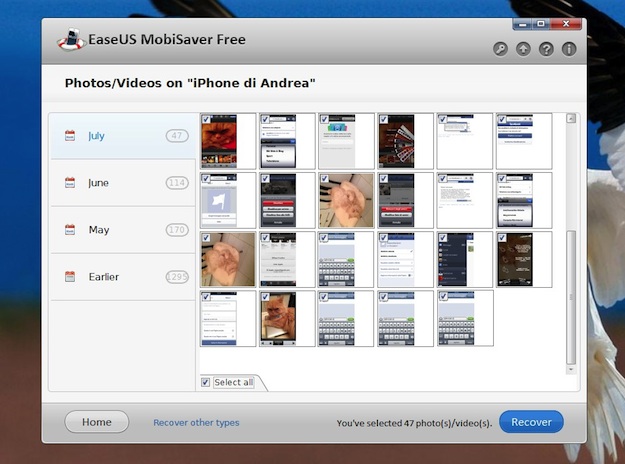
If you want to learn how to recover deleted files from iphone and Android devices and you have an iPhone, you can rely on EaseUS Free MobiSaver. This is a free application that uses the iTunes backup to recover accidentally deleted files from the iPhone and other Apple mobile devices. To use it, you must have the latest version of iTunes on your computer, with at least one backup.

To download EaseUS Free MobiSaver on your computer, go to the program's website and click on the Download button. When the download completes open, double-clicking on it, the file you just downloaded (ems_free.exe) and, in the window that opens, click on Yes and then click Next. Accept the terms of use of the program, putting the checkmark next to I accept the agreement and click on Next twice and then click Install and Finish to finish the installation process and launch EaseUS Free MobiSaver.

Now, to recover deleted files from your iPhone, select from the home screen of EaseUS MobiSaver the type of data to search: contacts, Photos/videos or Note/reminder. Next, click on the Start button (located in the lower right corner), connect iPhone to your computer and wait for it to be detected properly.

At this point, click Next, select the iTunes backup to be used for data search and starts scanning its contents by clicking on Next. When the operation is completed (might take a few minutes), put the check mark next to the files you want to retrieve and click Recover to choose the folder where you want to export. You will be asked to register the program with a serial number, get for free by logging in to this page and fill out the form in it.


If you have an Android phone and would like to know how to retrieve deleted files from iphone and Android devices, I suggest you take a look at the Hexamob Recovery Lite application  that is free in its basic version but to work requires a system unlock.

Once you have root on Android and installed Hexamob Recovery Lite, to use the app and recover deleted data from your phone does not need to do is to press the button Selective recovery and select the fields in the Search and Save to , respectively, the location where look for the files to be recovered (eg, the internal memory of the phone) and when save after recovery (eg the memory card inserted in your smartphone). It is not recommended to select the same path as the source and destination.

Next, press the Next button and wait for the application to scan your phone (or memory card) to search the recoverable files (this may take several minutes). When finished, select the deleted files you want to restore, and tap on Recovery to save them in the destination path. Once restored, the files recovered by Recovery Hexamob Lite are saved in section Recovered of the app.

If you prefer, you can try to recover deleted files from your smartphone even through your PC. Just use the free application Recuva setting as a unit in which to search the drive for the mobile phone. You can find a complete guide to using Recuva in my article on how to recover deleted files, but remember: deleted files are not always recoverable. If the portion of memory in which they were housed is rewritten,it becomes irrecoverable or is damaged and therefore unusable.

DOWNLOAD | EaseUS Free MobiSaver (for iPhone)

DOWNLOAD | Hexamob Recovery Lite (for Android)

7/5/13

Experts Suggestion: How to Extend battery life of an iphone and ipad


Many iPhone owners charge smartphones every day,transforming the everyday rituals like brushing your teeth and your morning coffee. Others have resorted to using the battery charger only after the battery is completely depleted. But, one way or another, all owners of smartphones and tablets would like to rid themselves of the need to change too often served their batteries with new ones. Recently Experts announced their verdict: If you want your gadgets battery to last as long as possible, do not charge the phone to the maximum.


According to Energysafe (Russian site), too frequent charging of battery can cause small damage to it. However, about once a month you should perform a full discharge/charge cycle.

We recommend that you charge phones battery by not more than 50%. In General, optimal battery charge level is between 40% to 80%. The experts also debunked the myth that new phone to be charged within 72 hours before you use it to "remember" what it feels like to be fully charged. Such advice is valid when working with nickel batteries, but in the case of lithium-ion batteries, which are used in newer phones, it is completely untenable.

ALSO READ: How to download torrents on iPad and iPhone

Experts also advise not to expose the phone to extremely low/high temperatures. Recommended storage temperature of most batteries is 15 ° C (59 ° F), the maximum safe temperature, usually varies from 40 ° C to 50 ° C. With an average temperature of 25 ° C lithium-ion battery will lose 20% of its maximum capacity every year. At 40 ° C the capacity is an annual fall of 35%.Therefore, it is best to avoid wireless Chargers: inductive Wireless charging devices generate excess heat, which makes the battery of your device "toast".

You can extend the battery life by setting the brightness on the phone screen and turn off the applications that use GPS, such as geo-location services. In regions with poor signal turn on airplane mode, your phone will not spend valuable electricity at finding nearby base stations and establish connections with them. In addition, it is useful to lock your phone when not in use, and use a silent ringtone.

6/27/13

How to download torrents on iPad and iPhone


iTransmission is a new free jailbreak app that allows you to download torrents on the iPhone and iPad. The utility is written and works on the principles of the popular desktop torrent client Transmission.


iTransmission has one of the most convenient and user friendly interfaces of all torrent clients for the iPhone.  As well as desktop counterpart, it is stable and the presence of many support functions.


After you install the iTransmission, on the home screen of the iPhone there is a new icon to start the program. To put the torrent to download just open iTransmission, click the plus sign in the lower left corner of the window and paste the link to the file.

ALSO READ: How to block websites on Android

iTransmission have the option in the preferences to include a Web interface that provides quick access to the downloads. Here you can also define which type of networks will be used for loading (Wi-Fi, cellular networks, or both). For the most advanced port forwarding function is present. Access to the loaded content is accessible via iFile or any SSH client.


NOTE: To install the iTransmission on your iPhone, iPod touch and iPad jailbreak is required.

To install the utility on the iPhone, add Cydia repository add http://repo.insanelyi.com and locate through search iTransmission.

DOWNLOAD | iTransmission

6/17/13

How to Cancel/Remove App updates in Android and iPhone


After you have updated to the latest version, one of your favorite app for iPhone or Android has stopped working properly? Unfortunately it can happen ... but all is not lost. With small tricks, you can return to the previous version of the application preventing this update again.

By doing so, you'll keep the last working version of app on your smartphone and wait calmly to released a new update to put right the situation. For all the details, here's how to undo an update app on iPhone and Android.

Let's start seeing how to cancel an update app on the iPhone. You should know that unfortunately the "melafonino" from Apple does not provide functions that allow you to downgrade an application directly, but you can use in your favor the iTunes backup to get the desired result anyway.
If you've updated the app directly from your iPhone and have performed the last backup of the phone on the PC when the latter had not yet been updated, you can reinstall the version of the application saved in iTunes without going through the App Store. In that way? It is very easy.

The first step you need to do is uninstall the app from your phone by pressing and holding for a few seconds your finger on the icon and pressing the x that appears in the upper right corner. Then you have to connect the Terminal to the computer, select the App from the menu located at the top left in the main iTunes window and drag with the mouse the icon of the app that you want to restore to your iPhone (which automatically appears in the sidebar on the right while dragging).

-->
Synchronization will happen instantly. At this point, you'll find yourself with the old version of the app on your phone and the only thing you will have, will be to not update it via the App Store until they release a version able to fix all the problems you encountered. It was not hard, is it?


Android, as known, leaves more freedom of action to the user compared to iPhone but not even Google's system provides a direct option to cancel an update app. What you can do is turn off automatic updating of applications on your terminal, so as to avoid unwanted upgrade, and restore older versions of the app using a backup software that runs directly on your smartphone.
To disable the automatic update of the app on your phone, open the Google Play Store, press the Menu key of your Android device and select Settings from the menu that appears at the bottom of the screen. Next, go into the menu automatic update and put the check mark next to the entry does not automatically update the applications.

-->
If you want to restore the previous version of an app you've already updated, you can use Titanium Backup functions. This is a free application to back up that allows you to save on a MicroSD or memory of the smartphone apps and data automatically. You can set it so that it performs an automatic backup every few applications. days in order to recover old versions of applications in case of updates just lucky. Is easy to use but requires devices that have been obtained the root permissions.

Alternatively, you could also try the installation package (.apk) of older versions of the app on external sites to Store, but it is a practice that you advise against. You may in fact encounter on unreliable sites that distribute software contaminated with malware dressed up by legitimate applications. Better to avoid such operations and be proactive, making a backup of the app before you update or disabling automatic updates Play Store to manually select the applications you want to update.