Showing posts with label Android. Show all posts

8/11/14

How to create Multiple Whatsapp accounts on Android Smartphone


We know that the messaging service WhatsApp is more common among phones. It allows users to share pictures, videos, music and so on. Even the latest version of Android also supports audio messaging. At the moment there are more than 200 million active users on WhatsApp that delivers more than 20 billion messages worldwide. Although other messaging chat available, users prefer WhatsApp  due to its simplicity and the instant messaging service. 

But you might have faced the problem can not use more than one account on the mobile WhatsApp. Users of Dual SIM always want to use two different accounts on their mobile phone. At first it was very difficult, but now you can with the help of multiple accounts SwitchMe App. Single SIM users can also use this application to use multiple accounts.

Steps to create Multiple Whatsapp accounts on Android Smartphone 

Step 1: Your Android Smartphone must be rooted and it should contain SuperSU installed (because  we'll be using it later)

Note: Your Android Smartphone should be rooted to follow this tutorial.

Step 2: Install Whatsapp Application on your smartphone. Skip this step, if whatsapp is already installed.

Step 3: Install SwitchMe Multiple Accounts on your smartphone. Once it is installed it successfully, Launch it.

Step 4: Now, SwitchMe will ask Superuser permission. Tap on the Grant Button, to allow the superuser permission.


Step 5: A warning message would be displayed saying "incorrect use of this application may harm your device". Ignore the message and tap on "Close" button to continue.


Step 6: Create 2 different user profiles so that you can use multiple whatsapp accounts. For that, click on "Create Profile"

Step 7: Provide a name for your profile and click on OK


Step 8: Once the 1st profile is created, repeat the same step to create another profile. Now your SwitchMe app contains two profiles as shown:


Note: The profile that is created first would be the primary account (default) and the next profile would be secondary account.

If you have installed any application like whatsapp in the primary account(default) then that app would be available only to primary account. i.e. it will not be available to the secondary account. If you want whatsapp account on secondary account, then you have to install it again.

Step 9: Now try to switch the accounts in SwitchMe Multiple Accounts application. i.e. simply tap on Secondary Account to switch between accounts.


Step 10: Your Smartphone will restart automatically. Once it is restarted, open Google Play Store and again install Whatsapp messenger on the secondary account.


Step 11: Once the Whatsapp is installed on secondary account, open and complete the registration process.


That's it! Now you can use multiple whatsapp accounts on your android smartphone.

4/13/14

How to Block Ads on Android Apps, Games & Browsers


Ads are the most distracting things for most of the internet surfers.Most of these ads are irrelevant to many people. Recently, ads started to appear even on smartphones and tablets not while surfing the net but also while playing games and using some apps.There are so many extensions available for the users to block ads on android apps, Ad Block Plus is one of the most popular extension that is available for android users.

In previous post, we have written an article on downloading play store apps on pc. In this post we try to explain two methods to block ads on android apps,games and browser.

How to Block Ads on Android apps, games and Browser?

We have a trick that is used to block ads in windows Operating system and we can use the same trick on Android smartphones too, that is hosts file trick.

Step 1: We have collected some websites which shows ads on android apps, games and saved them in one text file, you need to download that text file.

DOWNLOAD | Hosts file

Step 2: Once the file is downloaded, you should change the file name to hosts.

Note: If you don't change the file name, then this trick will not work!

Step 3: Once the file name is changed, transfer that file to android system folder.Inside system folder, navigate to /etc folder and then paste the hosts file that contains list of websites that show ads on android apps and games.

Step 4: Now, rename the file name from hosts.txt to hosts.bak because there would be one hosts file already in that directory. 


Instead of renaming the file, you can just copy all the websites from hosts file and paste the websites list in your smartphone system hosts file which is in /system/etc folder.


Note: To paste the hosts file you should have the administrative rights, if the above trick doesn't work then you need to root your android mobile. If you don't know how to root an android phone, you can check my guide on rooting android phone, this will help you.

Step 5: Once all the above steps are completed, restart your smartphone and see whether ads are blocked or not.Most of the ads will be removed with this trick, but it still needs some improvements. We will add some more websites to this list in future.

Block ads on Android apps, games and browsers using Adblock plus for Android

This is a simple and useful method to block ads but you require to do some configurations. You can download adblock plus for android using the below link.


If your android mobile is rooted, then install this app with superuser permissions, then it'l work effectively. If your android device is not rooted, then you need to additional configurations like manual proxy setting. You check those configuration details from adblock plus website. (Settings for Non Rooted Android Samrtphones)


Block Ads on Websites with Adblock Plus Firefox Extension

If the above explained process seem tedious for you, you can use Firefox extension to blcok ads on websites only. For that you need to download adblock plus extension for Firefox using below link.


After installing this extension, just restart your browser and check ads are appearing or not.


These are the working methods to block ads on websites and android apps, games. If you have any problem while installing this app feel free to comment below.

4/5/14

How to Download Play Store apps on PC without any software


Everyone knows about android operating system as it is widely used by most of the  smartphone users and it is leading Operating System in mobile market as of now.  One of the main reason for Android OS to become popular is because it is a free  operating system and allows users to access file system and also due to the  availability of large number of apps and games.


All the users are familiar about downloading and installing apps in their android devices (from Google Play store) but what if you want to download and  install apps on your PC (Computer)?
Is it really possible to download android apps and to run them on PC? Yes  it is possible. If you want to know how is it done, then keep reading..

Some websites provide the .apk files but we cant trust those files  because, they might modify them and can attach some virus or malware to that file,  so if you want to install play store apps on your PC then follow below mentioned  steps.

How to Download Play Store Apps on PC?

You can find many website that provide android apps for PC but most of the users  only trust Google Play store. That's the reason we want to provide one useful  website to our viewers, to download and install android apps from Google Play store.

Step 1: Go to http://apps.evozi.com/apk-downloader/ to download the apk files  directly from Google Play store without doing any modification to the file. 

Step 2: This website has a simple interface and all you need to do is to enter the  package name or Google Play URL in the text box provided.

Step 3: To know about the package name of an android app, go to Google Play store  and search for the app which you want to download.

For example, Suppose I want to download Whatsapp messaging app. So search for  whatsapp in Google Play store.

Step 4: You can get the package name from the address bar. Every package starts  with com. It's displayed in the URL as shown below.
Id=com.whatsapp
Step 5: Now you should copy com.whatsapp, or else you can copy the entire URL of  the app and paste it in the apk downloader website.


Step 6: Once it is done, click on Generate Download Link button to download the  app on your PC.


Note: Before proceeding to download, check all the details of the app. Once it is  done, you can click on the Download button to download any android app on your PC.


You can download these android apps from your Google Chrome browser also, to do this, you need to install APK Downloader chrome extension. After installing the APK Downloaded chrome extension, you need to give details like your device id, Google Play store log in details.

How to Get Device ID of Android Mobile?

 - To know your android mobile id you need to try *#*#8255#*#* from dial-er.

 - If you want to know the device id of your android tablet, then this method does not work, to know the device id of your android tablet, you need to install Device ID android app.

DOWNLOAD | Device ID

Note: Before downloading the android apps using APK Downloader chrome extension, please read the below  guide.


If you have any problem in using this trick, you can leave a comment below, we'll help you.

4/4/14

How to Find Stolen/Lost Android Mobile using Android Device Manager


Now a days many people are using smartphones and the major share of smartphones run on Android.If you have lost your android device no need to panic because now you can find your lost, stolen and misplaced Android smartphones(mobiles) and android devices easily. You can find your lost android mobile without installing any apps.You can find your lost android devices by just using Android device Manager.

Android device manager:

Android device manager is automatically installed on your mobile or android device, when you access Google Play from your device for the first time.Hence there is no need for you to install any third party apps.Most of the people who lost their android devices in which no tracking app is installed in that device,might loose all hopes on their device, but Android Device Manager would really be helpful for those people.

Advantages of Android device Manager

- Device owner can erase the data in the device from anywhere.
- It helps you to trace your lost device
- Allows you to lock your device from anywhere.
- You can find your misplaced mobile or tab.

How to use Android Device Manager to track lost device?

Step 1: Navigate to security under the settings tab and move to device administrator. Tap on it and activate it if it is off.


Step 2: Go to Google Play Store. Click on the Gear icon at the top right side as shown below.


Step 3: Click on Android Device Manager.


Step 4: Once you click on the Android device manager, it would find the mobile (android device) with which it was associated. Once the lost device is found, it will show your phone location in Google Maps and it also indicates the distance between your mobile and you (from where you accessed the Google Play Store).


MUST CHECK: How to Download Play Store apps on PC

You can perform 3 Options:

1. Ring: If you select on the Ring option, then your device will start ringing even though it is silent.

Note: This feature will not work if you mobile is switched off.

2. Lock: Selecting Lock option, allows you to lock your device and you can get a new password to access your device again.

3. Erase: Selecting Erase option allows you to delete total data from your device automatically.

Note: If you select erase option, all the data including Android Device Manager would be erased and hence you cannot use it again.

I hope this was useful for all the Android lovers. So don't forget to share this! Leave a comment below, if you have any problem in using Android Device Manager.

2/25/14

Best Video Editing Apps for iPhone & Android Smartphones


Video editing apps for smartphones have grown hugely popular in the recent months.This is due to the fact that more and more people are relying on their phones to create videos, which has done away with the need for camcorders. Of course, simply shooting video isn't enough for everyone- to truly get a message across, you may need an editing program. Some great free video editing apps have stepped up to fill the need. There are a huge number of video editing apps for iPhone and Android smartphones that are extremely popular and include an array of great features. If you own one of these types of phones and enjoy shooting your own video, you should certainly explore these apps if you wish to take your love of video to the next level.

Magisto — Magical Video Editor

Magisto is a free video editing app for both Android smartphones and iPhone. It is easy to use and makes it fun to automatically edit your videos and photos so that you can share them with others. Additionally, you can create your very own movies with the app by using a minimum of five photos. You can even save all of your movies to cloud storage within the app if you have a premium subscription.

DOWNLOAD | Magisto (iPhone) | Magisto (Android)

Lumify Video Editor

Lumify Video Editor is a free video editing app for iPhone that allows you to create and edit your own video. Videos made and edited through Lumify are of professional quality and can be shared on YouTube, Instagram, Facebook and other social networks. It is easy to use, fast and powerful. You can preview all your videos and add cool effects to them as well. 

DOWNLOAD | Lumify (iPhone)

Splice — Video Editor (Free)

Splice is a nice video editing app for the iPhone that allows you to put together photos and videos in the way that you want. You can add music, sound effects, filters and other image effects to each video as well. The app is easy to use and uses a simple drag and drop method for creating and editing your videos. 

DOWNLOAD | Splice (iPhone)

Video Editor FREE

Video Editor is a great video editing app for both iPhone and Android that allows you to create and edit videos. You can add music and make your clips into music videos, share videos to YouTube, Facebook and other social networking websites, merge several videos into a single file and much more. 

DOWNLOAD | Video Editor FREE  (iPhone) | Video Editor FREE (Android) 

RECOMMENDED: Best Google Apps for Android Smartphones 

Video Editor: All in One

Video Editor: All in One is a free video editing app for Android smartphones that is considered the best for editing videos on the platform. You can trim your videos down, add or remove music and effects and convert your videos into a variety of different formats, add your voice to videos and much more. 

DOWNLOAD | Video Editor: All in One (Android)

mVideoCut — Video Editor

mVideoCut  is free video editing app for Android devices and is essentially a free cloud based services for your videos. In addition, you can edit videos with music, filters, colors, trim them at the beginning or end and a whole lot more.

DOWNLOAD | mVideoCut (Android)

With all these great video editing apps to choose from, there’s no reason you can’t get started editing your very own videos today. Whether your interests in are simply for comedic value or to boost your business, you are guaranteed to find an app that is perfect for you. Feel free to leave your comments below.

Lisa West is a web designer and technology writer from Tucson, Arizona. Her interests include video production, information security, and mobile apps.

12/4/13

How to Root Android Phones easily


Compared to iOS, the operating system of the iPhone and iPad, Android is much more open. Anyone can download the apps you want from the Internet and install them on your smartphone easily using the Google Play Store. Some special applications, however, requires advanced permissions that you can get just by unlocking the smartphone.

In this article, we will see how to root Android phones in order to unlock mobile phones equipped with this OS and install on them even more advanced applications, such as those for example allow you to adjust the CPU settings and move on microSD applications that don't normally permit. With a little care,will prove to be much less difficult than you think.


1. Root Smartphone Using SuperOneClick

Let's start this guide on how to  root Android phones from the easiest way to unlock a phone i.e. by using SuperOneClick, a free application for Windows that allows you to run the root on many Android smartphones (especially to medium-low) with a simple click.You can download SuperOneClick here.

To Unlock(Root) your phone using SuperOneClick, you have to connect it to the PC via USB cable, turn on USB debugging on Android, click Root in the program and wait a few minutes to run the process of rooting your device. If you have any trouble in rooting your phone using the SuperOneClick you can contact me.

SuperOneClick is compatible with the following Smartphones: 

  • Acer Liquid Metal smartphone
  • Dell Streak, HTC Magic 32B
  • LG Optimus 2 x
  • Motorola Defy
  • Motorola Flipout
  • Motorola Milestone
  • Motorola Milestone 2
  • Nexus One
  • Samsung Galaxy Ace (with Android 2.2.1 or lower)
  • Samsung Galaxy S
  • Samsung Galaxy S2/Next/Mini
  • Sony Ericsson Xperia X 8
  • Sony Ericsson Xperia X 10.
If your phone is not listed, try doing a Google search with the name of the application to that of the terminal you wish to unblock and see if there is any specific guide that you can follow.

Like all other software to run the root on the Android phones, SuperOneClick requires that your computer be installed device drivers. Android smartphone drivers usually come with software to handle the terminals from the PC (eg. Kies for Samsung devices). To learn more about these software and find out what is right for your phone, read the guide that I have dealt with how to transfer music cell phone.


ALSO READ: Increase the performance of a Android smartphone 

2. Root Smartphone Using ODIN (Only Samsung Smartphones)

If you're looking to root a Samsung Android phone, you can rely on the free program ODIN which is not easy to use for novice users but is very effective even with high-end terminals. You can find the list of all phones compatible with this tool on this page of  XDA Developers.

To use ODIN, as well as the latter you must also download the necessary files to root your smartphone (change case-by-case basis, so you have to be good at finding them on Google). After you extract it all in a single folder, start the program, enable USB debugging on your phone and connect the Terminal to the computer after you started the Download mode. To launch a smartphone in download mode you have to press Volume down + Home + Power phone off simultaneously, wait for a warning appears on the screen and confirm by pressing the Volume up key. Next, you need to click on the PDA of ODIN, select the file tar.md5 retrieved earlier from the archive with the files for rooting and start the procedure for unlocking the phone by clicking on Start.

HTC smartphones, on the other hand, there are a couple of named Unrevoked and Revolutionary tool that allow you to run the Android root in a relatively simple manner. The first is devoted to older terminals, according to the most recent ones. To learn more and discover all the smartphones compatible with the other application, give a look at this and this Web page.

ALSO READ: How to Increase Internet speed on Android devices

11/22/13

3 Things to do before Moving to a New Phone


Buying a smartphone has become a very personal and empowering experience; the phone we carry reflects our image, aspirations, pass-times and social habits. So it is no wonder that each year, more than 1.6 billion new cell phones are sold, and the average American cell phone is replaced every 22 months. You probably don’t realize how much personal information is on your old device; all your old emails, text messages, contacts, GPS locations, photos, videos (the list goes on and on). None of this information should ever be allowed to end up in the hands of a complete stranger.


So, what should you do with your old phone when you get a new one? There are plenty of options these days. You can donate it, sell it, keep it as a backup or even recycle it. However, it’s extremely important to make sure all personal information is erased and inaccessible before you dispose of it.

Here are some simple steps to help you clean your phone:

1. Backup your data

Firstly you need to make sure you backup all the information (assuming you want to keep it)
Remember that in Android devices there may also be a MicroSD card that has data stored on it. I recommend you simply remove the SD card and keep it. For the data that is on the internal phone memory you can do the following:

For iPhone:

Connect it to your computer and backup the Phone > in iTunes find your device on the navigation bar and in the summary section you can run a backup.
  • If you want all the information to be visible individually on your computer so you can view and edit the files then you should “sync” the data; you can do these for individual types of files in the “Info”, “Apps”, “Music”, “Movies”, “ TV Shows”, “Podcasts”, “Books”, “Photos” categories in iTunes.

For Android:

You should synchronize your contacts, calendar etc with your Google account, and can load your device as an external drive by plugging a USB cable into your computer, from here just drag and drop the files you want to save to a folder on your computer.
  • You can also install a backup app to keep a copy of your important files.

ALSO READ: How to recover deleted SMS from iPhone and Android Devices

2. Stop Synchronization

Once you’ve saved your important data make sure you disable any automatic synchronization that you may have set up. This will avoid any information being transmitted after you have backed it up creating a gap in the data. This includes any services you may have subscribed to that link directly to your unique device.

3. Wipe the device

To wipe an iOS gadget:  

Go to Settings>>General>>Reset. Tap Erase All Content and Settings and then push the ominous red Erase button. Depending on your device this could take a few minutes or a few hours. Make sure the gadget is plugged in or has a full battery before you begin.

For Android Devices: 

For versions before Android 4.0, press the Menu key from the Home screen and select Settings/Privacy/Factory data reset. You'll get a warning screen. Scroll toward the bottom and tap "Reset phone." If you also have an SD card in the phone (and don't want to use the data in your next phone), also make sure to check the box next to "Erase SD card." For Android 4.0 or later, go to Settings and look for "Backup and reset." Tap that, and then, on the next screen, tap "Factory data reset".  You'll get a warning screen along with a list of all the accounts you are currently signed into.

Whether you have state secrets or just a few personal memories on your phone, making sure they don’t end up in the hands of strangers is the right thing to do. So take a moment and wipe your old phone before you get rid of it.

ALSO READ: How to recover deleted files from iPhone and Android Devices

About Author: Greg Boyle is Senior Global Product Marketing Manager of Consumer Mobility at Trend Micro. He is responsible for Trend Micro’s efforts to educate and secure the mobile lives of consumers.

10/20/13

Top 5 Google Apps to Download on Android Devices


Google offers a host of applications for mobile devices. It does this on iOS, but it does especially for Android users, the operating system of the company created and developed in Mountain View. If you know the famous "Maps", "Search" or "Chrome", among the most popular app ever on smartphones around the world, maybe you have lost sight of some of those that we want to advise you today.

Here is the list of Top 5 Google Apps to Download on Android Devices

Google Drive


Popular service from Google, on PCs and on Mobile. The online storage of files – which replaced GDoc – is available to mobile with the same functionality of your computer,from management to files sharing , with the possibility to make changes in real time and not stay away from their jobs in case of emergencies. Drive is also very useful for storing files such as photos, videos and everything you will want to keep online, and at the same time always accessible via your smartphone.

DOWNLOAD | Google Drive

Google Currents


Currents is a kind of main feed online newspapers, popular blog, but allows a reading in magazine format, more engaging than a normal online navigation. Use this to not miss any news from your favorite sources.

DOWNLAOD | Google Currents

Google Authenticator


Among the many lesser-known but equally useful Google Aunthenticator. Authenticator manages two levels of security when accessing data on the device. In fact we need a code generated by Google Authenticator, in addition to the password of your account to access.

Google Goggles


Goggles acts in connection with the camera: by clicking on "a framework, a monument, a QR or bar code, a product showcase or an image", the application accesses the Internet and provides useful information to the user. In real time.

DOWNLOAD | Google Goggles

MUST CHECK: Best Google Chrome Extensions 2014

Google Analytics


Mobile application of known data monitoring service of a web site. The insiders - webmaster and SEO - will know already. But it was worth inserting it in the list of Top 5 Google apps to Download. The app contains all the updated data Analytics accounts already displayed on your PC, including data in real time.

DOWNLAOD  | Google Analytics

9/29/13

[Tips/Tricks]: How to Increase Internet speed on Android devices and iPhone


Web browsing from your smartphone seem to be very slow in both 3G and Wi-Fi? Don't worry, with some tricks you can manage to improve the loading time of the Web pages on your phone.

Take a few minutes of free time and try to follow these directions on how to speed up Internet on your mobile phone I'm going to give you. With a correct DNS server setting and use of alternative browsers, your mobile browsing experience could improve significantly.


Let's start this guide on how to speed up Internet on phone talking about a topic that I have already dealt with many guides dedicated to PC world, the DNS server.If you din't heard about that,let me explain, the DNS servers are those "translators" that allow us to visit Internet sites with text that addresses all we can remember without too much trouble (e.g. google.com) instead of numeric addresses that long would be the actual coordinates to reach them. One of the most important steps you can take to speed up your Web browsing from your smartphone is to change the DNS that your phone uses normally to reach sites on the Internet with faster servers.

If you're using an Android smartphone, you can change the DNS servers used by your mobile phone with the application Set DNS. The app is totally free but to use it you must have enabled root access on your smartphone. Once "unlocked" the smartphone and finish installing Set DNS on it, start the application and press the Allow button.

At this point, select the DNS server you want to use on your phone (I recommend OpenDNS or Google DNS) from the drop-down menu located in the top left and press the Apply button to save your changes. Now, reboot the device and you're done. DNS servers that are set in the app are used both for free Wi-Fi and 3G.


Even on the iPhone you can speed up Internet on your mobile phone by changing the DNS servers of the connection. To do this, you must go in the settings of iOS (pressing on the icon on the home screen of the phone), select Wi-Fi from the menu that pops up and press on the button located next to the name of the network currently in use.

MUST CHECK: How to Increase the performance of Android devices

In the screen that opens, therefore, we must select the field DNS , clear all values ​​present within the latter and replace them with the addresses of the DNS servers to use: 8.8.8.8, 8.8.4.4 for Google DNS or 208.67.222.222, 208.67 .220.220 for OpenDNS, they are both very fast. It should finally be pressing on the words Wi-Fi located in the upper left and Web browsing will be immediately faster.

As you may easily guessed, the above procedure allows you to change the DNS Wi-Fi but not 3G connection. To set the DNS for the data network, you must use a jailbroken iPhone (unlocked) and install the tweak called GuizmoDNS from Cydia Store.
 

Another way to increase performance of Android and iPhone in terms of Web browsing is to use an alternative browser to "serial" installed on your smartphone. In this regard, I want to point out that Opera Mini – as stated in its official description – uses a cloud technology that compresses data up to 90% before sending them, thus speeding up the loading of Web pages (in 3 g, especially).

ALSO READ: How to hide my IP address on Android devices

Of course don't expect astounding results, but in many circumstances actually helps to load pages faster than other browsers. Opera Mini is available for both Android and iPhone, just look it up on Google or Play App Store. Its user interface is very simple to use and also includes other interesting functions, like synchronizing data across multiple devices, a simplified tabbed browsing and more.


DOWNLOAD | Set DNS

9/26/13

[Tips/Tricks]:How to hide my IP address on Android devices


You need to disguise your IP address of your Android smartphone to access a site that blocked access from India or for privacy reasons?  Perfect, you're in the right place at the right time.

With the guidance of today, we will discover how to hide IP address in Android devices, thanks to some solutions that allow you to navigate from smartphones and tablet using a foreign address (U.S. or UK). They are all very easy to use and free, at least in their basic version. Let's get right to work!


If you're looking for a solution on  how to hide IP address in Android devices,the first Android app that I suggest you try is HotSpot Shield. This is a VPN (virtual private network) that lets you disguise the IP of your smartphone/tablet with a u.s. address and thus provides access to blocked websites (in previous posts we have discussed about blocking websites as well, you can check it here(link)). The basic version is free but is displaying some banners and a speed of navigation rather low.

To install HotSpot Shield on your Android Terminal, open the Google Play Store, look for the app within the latter and tap on install button, and then click I accept. When the operation is complete, start HotSpot Shield and create a free account to use the service.

To do this, press the button Yes, protect my connection!, then tap Continue and fill in the form proposed to you by typing your email address and password you want to use to access HotSpot Shield in their respective fields. Finally, press the Create account button and you're done.


At this point, to hide IP address in Android  devices using HotSpot Shield, tap on the button Protect my connection! located on the main screen of the app and wait until the connection is established to the VPN.

When the connection is made, HotSpot Shield icon in the Android status bar will turn green and you can surf the Internet using your IP in disguise. To verify the change of address, open the browser, connected to any of the sites that allow you to display your IP (e.g. whatismyipaddress.com) and you should be connected from the USA.

At the end of your session work (or leisure) online, you can stop the HotSpot Shield connection going into the main app screen and pressing the button Turn off protection.Is it not easy?


If you don't want that HotSpot Shield starts automatically when you start Android, tap on the Menu button located in the upper right corner (the icon with three horizontal lines), select Settings from the box that pops up and remove the checkmark from the option Start  on boot. If you want to subscribe to a paid service plan (without advertising and faster Web surfing), tap on the text Get More and choose which subscription.

Other good VPN applications you could try on your smartphone or tablet Android are TunnelBear, which offers 500 MB of free traffic per month giving you the ability to disguise your IP with a us or UK address, and Tigervpns VPN offering 500 MB of free traffic for all new subscribers.

DOWNLOAD | Hotspot Shield VPN

DOWNLOAD | TunnelBear

DOWNLOAD | Tigervpns

8/8/13

LG G2: A Smartphone with no buttons on sides


G2 is not just another Korean smart phone, but also the implementation of the new strategy of the company. LG plans to strengthen its position in the segment of expensive models, where Apple and Samsung are strong.


LG Electronics unveiled at New York flagship Smartphone G2, opening a new G-series premium devices. Design of the device is resolved so that at the sides there were no buttons. Volume control and other functions have been moved to the back panel after examining a number of studies and surveys. It was found that with increasing size of smartphones to use the side buttons is awkward.


Display with a diagonal of 5.2 inches on the IPS-matrix format Full HD (1080h1920 points) separates from the edge of the smartphone side panel frame width 2.65 mm. Technology Graphic RAM (GRAM) for a demonstration of static images can reduce energy consumption by about a quarter of the screen. Accordingly, increases battery life by 10%.

The smartphone is equipped with a Qualcomm Snapdragon 800 with four 400 Krait cores clocked at 2.26 GHz  processor and Adreno 330m graphics accelerator. The RAM is 2GB of integrated storage capacity can be 16 or 32 GB.

The smartphone plays the Hi-Fi-sound studio quality (at 24 bit/192 kHz). The basic 13-megapixel camera has optical image stabilization. There is also a standard 2.1-megapixel front facing camera. The smartphone LG G2 provides GPS / GLONASS receivers, chip NFC, infrared, battery capacity of 3000 mAh. LG G2 operates mobile networks in LTE. Model dimensions are 138.5 x 70, 9h8, 9 mm, weighing - 143 grams

ALSO READ: Motorola Moto X Phone Specs,Features & Release Date

Finally a few words about an interesting accessory - this is a special case for the smartphone LG QuickWindow G2. He closes the smartphone with the two sides, but the front left of the active portion of the screen. Smartphone recognizes that at the moment the machine is this accessory, and there displays various notifications, allowing you to perform a number of actions without having to open the top cover of the box.


7/20/13

Motorola Moto X Phone Specs,Features & Release Date


Here we go, it's official! This time it is not stolen photographs, half phrases or rumor because Motorola has officially set an event for the upcoming August 1st where it will be presented to the world the new Motorola Moto X!


Undoubtedly the event was fixed after July 24 because the new Motorola Device developed in partnership with Google will launch with the latest version of Android, which is 4.3, which will be just officially unveiled to the world during an event dedicated on July 24.


Meanwhile check another image on the net (found just above) that shows the lower part of the Moto X in a very defined and the first thing that leaps to the eye is the transparency of the bottom bar that contains three buttons back, home and multitasking allowing it to exploit more fully on display.

Currently we do not know if it's a choice of the company or of a feature of Android 4.3 to find out we'll have to wait until July 24!

ALSO READ: Android 4.3 comes with always-on Wi-Fi and other new features

Features and Specifications:

We again came under a stream of rumors about the smartphone Motorola Moto X, there were really a lot of events associated with the device, and one of the most interesting was the publication of one of the users of the service Reddit, which has laid out not only the whole pack of screenshots from the device, but also a video.


The first thing that was discussed in detail today - the function Open Mic, formerly known as the "always on". Its essence lies in the fact that the device is always in listening mode and is ready to perform everything the user, even when the device is locked (no password or graphic key, of course). The owner of a smartphone is enough to say "OK Moto Magic" and needed a voice command - it's very reminiscent of circuit voice control Google Glass, where the key phrase is to activate "OK Glass". While it is not clear exactly which commands are available, but it is now known that it will be possible to make calls and navigate through Web pages.

ALSO READ: LG G2: A Smartphone with no buttons on sides


In addition to information about the Open Mic, a user with the nickname KronikBudz also shared screenshots made ​​in the program CPU-Z , which displays detailed information about the system and filling device. According to the information received about the specifications of Moto X, smartphone has a dual-core Qualcomm Snapdragon S4 Pro processor with a clock frequency of 1.7 GHz and Adreno 320 graphics accelerator, 2GB of RAM, about 12 GB of internal memory available to the user, and a display with a resolution of 720 x 1184 pixels (corresponding to HD minus the touch buttons) and a diagonal of 4.7 inches, for which we have the power to believe in the word.

7/9/13

How to recover deleted files from iPhone and Android Devices


Recently, we showed you how to recover deleted files from PC using Recuva. But  we are getting many mails requesting us to explain in a simple way to recover deleted files on Android devices and iPhone so, we decided to write a post on the topic of user's choice.

If  you have accidentally deleted a picture or video from your smartphone? Unfortunately it happens, but you don't have to despair. There are many solutions that allow you to recover deleted files from iphone and Android devices that can remedy even the solutions that seem more desperate.

Freak stuff? Absolutely not, they are all very easy-to-use applications. If you want to know more, take five minutes of free time and learn how to recover deleted files from iphone and Android devices with one of the solutions that I'm about to show you.Whether you have an iPhone or an Android device, you should be able to reach your goal without too much trouble.


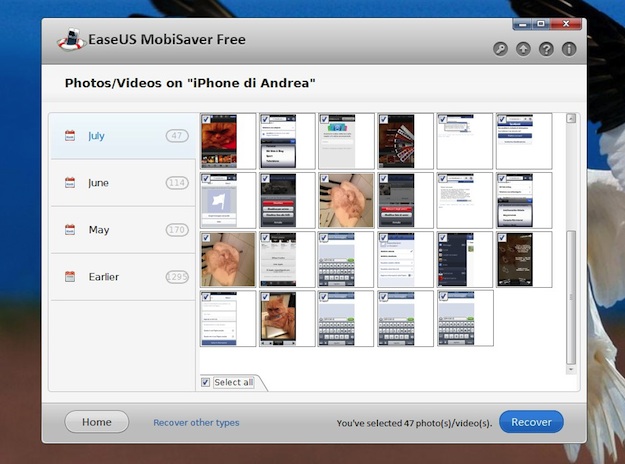
If you want to learn how to recover deleted files from iphone and Android devices and you have an iPhone, you can rely on EaseUS Free MobiSaver. This is a free application that uses the iTunes backup to recover accidentally deleted files from the iPhone and other Apple mobile devices. To use it, you must have the latest version of iTunes on your computer, with at least one backup.

To download EaseUS Free MobiSaver on your computer, go to the program's website and click on the Download button. When the download completes open, double-clicking on it, the file you just downloaded (ems_free.exe) and, in the window that opens, click on Yes and then click Next. Accept the terms of use of the program, putting the checkmark next to I accept the agreement and click on Next twice and then click Install and Finish to finish the installation process and launch EaseUS Free MobiSaver.

Now, to recover deleted files from your iPhone, select from the home screen of EaseUS MobiSaver the type of data to search: contacts, Photos/videos or Note/reminder. Next, click on the Start button (located in the lower right corner), connect iPhone to your computer and wait for it to be detected properly.

At this point, click Next, select the iTunes backup to be used for data search and starts scanning its contents by clicking on Next. When the operation is completed (might take a few minutes), put the check mark next to the files you want to retrieve and click Recover to choose the folder where you want to export. You will be asked to register the program with a serial number, get for free by logging in to this page and fill out the form in it.


If you have an Android phone and would like to know how to retrieve deleted files from iphone and Android devices, I suggest you take a look at the Hexamob Recovery Lite application  that is free in its basic version but to work requires a system unlock.

Once you have root on Android and installed Hexamob Recovery Lite, to use the app and recover deleted data from your phone does not need to do is to press the button Selective recovery and select the fields in the Search and Save to , respectively, the location where look for the files to be recovered (eg, the internal memory of the phone) and when save after recovery (eg the memory card inserted in your smartphone). It is not recommended to select the same path as the source and destination.

Next, press the Next button and wait for the application to scan your phone (or memory card) to search the recoverable files (this may take several minutes). When finished, select the deleted files you want to restore, and tap on Recovery to save them in the destination path. Once restored, the files recovered by Recovery Hexamob Lite are saved in section Recovered of the app.

If you prefer, you can try to recover deleted files from your smartphone even through your PC. Just use the free application Recuva setting as a unit in which to search the drive for the mobile phone. You can find a complete guide to using Recuva in my article on how to recover deleted files, but remember: deleted files are not always recoverable. If the portion of memory in which they were housed is rewritten,it becomes irrecoverable or is damaged and therefore unusable.

DOWNLOAD | EaseUS Free MobiSaver (for iPhone)

DOWNLOAD | Hexamob Recovery Lite (for Android)