Showing posts with label Internet. Show all posts

8/29/14

How to Increase Internet Speed using Connectify Dispatch


Now a days everyone wants fast access to internet. People really get frustrated when they have very low internet speeds. Recently we got mails from our viewers to provide a solution to increase internet speed so in response to their mails, I'm coming up with this article that will help you to increase internet speed.


In this article I'l show you how to increase internet speed by using Connectify Dispatch. Connectify developed a superb tool which allows you to combine all the internet connections that are available on your computer. By combining the internet connections you can increase internet speed without any interruptions. (You will get interruption in internet connection when you use a wireless connections. By using connectify Dispatch, you can solve that problem also by connection it to a wired internet connection). 

This is very interesting right? Lets get started!

How to Increase internet speed using Connectify Dispatch

How to combine Internet connections with Connectify Dispatch

Step 1: Download Connectify Dispatch (download link is available below)

Step 2: Connectify Dispatch is available in both free and premium versions.Select any verison you like and download it. In this article I'm using a premium version.

Step 3: Once the download is complete, install it on your computer.

Step 4: Now, connect all the internet connections that you want to combine.

Step 5: Once all the internet connections are connected to your computer, run the Connectify Dispatch.

For the demonstration purpose, I have connected my Broadband connection (3 MBPS) and mobile connection ((3G) 2 MBPS).


When we combine the above two internet connections, the overall internet speed should be around 5 MBPS,but Connectify is showing me the 9.95 as the overall internet speed!!. (Even i don't know how this came :D). But I used to get internet speed some where around 10 MBPS during less traffic times i.e. during nights from my ISP network.


Step 6: Click on Start Dispatch to allow Connectify Dispatch to start combining the provided internet connections and to increase the internet speed as shown below.


That's it! Now you can experience the increased internet speed.

MUST CHECK: Increase Internet Speed in Android devices

NOTE: Even after performing the above steps, if you don't see any changes in the internet speed, then check settings as shown below.


Features in Connectify Dispatch tool

- You can set also limit to the amount of data used by the computer from a given connection as shown below.

- You can assign a particular internet connection to be used by particular applications by clicking on the Smart Loading as shown below.


- This is my favorite feature in Connectify Dispatch. You can share the combined internet connection over WiFi Hotspot using the Connectify HotSpot.


If you find any issues while increasing your internet connection speed, you can contact me :) 

2/10/14

How to Convert Torrent to Direct Download Link


Torrents are a great and easy way to download multimedia files and other useful data from internet. Most of the people (including me previously) use torrent clients like Bit Torrent,ยตTorrent etc to download movies,songs and other stuff and recently we wrote an article about using ยตTorrent on Android devices as well, but the fact is, Direct Download is always better when compared to downloading files from Torrents because Direct Downloads provide better speed than torrents.
Have you ever tried to convert a torrent to a Direct Download Link? No?

For all the people who don't know about this little tweak, here's a detailed explanation on how to convert a torrent to a Direct download link.

Follow my instructions:

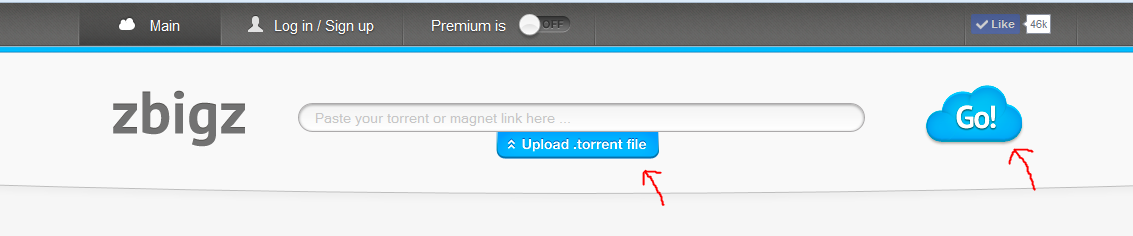
1. Go to zbigz.com. zbigz is an online Torrent client.
2. Create a free account at zbigz.com, here  free accounts has a limit of 1 GB per torrent i.e. It can convert a torrent who's size is less than 1 GB. If your torrent size exceeds 1 GB then go for Premium, it also provides better speed.

Note: There is no need to create an account in zbigz.com for normal use,but if you want to store your torrents for later downloads, then you need to sign up.

3. Once you create an account, go to zbigz homepage and click on "Upload .torrent file" and upload the torrent file that you want to convert into a direct download link and then click on "Go".


4. Now the Converting process starts and it may take few minutes depending on your torrent size
5. Once the converting is done, a Download button will appear,simply click on that button and your job is done! You have successfully converted a torrent file to direct download link..:)


Note: We highly recommend you to use good quality torrents because some bad quality torrents fail to work.

2/9/14

Best Facebook Tips and Tricks 2014


Facebook, best social networking site has made many changes from the time it has started. Every change that they made was to improve the experience of its users, but with all those updates, there came up many more Facebook tips and tricks that all users may not be aware of..so in this article i'l show you some of the useful tricks so that you can make the most out of Facebook. So Gear up and continue...


1. View Private Profile pics in full size

Have you ever tried of seeing the profile picture of the people who was not actually present in your friends list? Did u succeed in seeing their pictures even when they make their pics Private? If your answer is no..

Here's the facebook trick to make it possible!
1. Go to the profile picture you wanted to see and open it in a New Tab or New Window
2. Now in that tab's address bar, you may see the URL like:


3. Now Delete the 160x160 and press Enter.

You are done! Now you can see the full sized pic in your browser.

2. Post a blank status

If you want to post a blank status on your Facebook wall, it cannot be done in the normal way just like you update your status every time. Try it once...you might get a pop up like this:


Here's the facebook trick to post a blank status
1. Simply type the following in the update box
@[0:0: ]
If you want to have several blank lines in your status, just copy and paste the above code, that's it!

ALSO CHECK: 10 Facebook tricks that every Facebook user must know!

3. Disable "Seen" Option in Facebook Chat

Had you been through a situation where you were busy and your friends want to chat with you? In those cases you just want to ignore those messages, but the "Seen" feature in Facebook chat might put you in trouble..right? Don't worry..


Here's the facebook trick to hide "Seen" option in Facebook Chat.
For Chrome Browser:

1. Download Facebook Unseen.
2. Once it's installed, you should see the Facebook Unseen icon like this:


3.Click on the icon to be sure it’s enabled. When it’s working, you should see the following message:


For Mozilla Firefox Browser:

1. Download Grease Monkey
2. Now you have to install Facebook Stealth
3. That's it you are done!

For Internet Explorer:

1. Download the Chat Undetected plugin (Chat Undetected will also work for Chrome and Firefox Browsers).
2. Here's a detailed explanation on how to use Chat Undetected.

MUST CHECK: How to make money with Facebook

4. Download Facebook Album in a single Click!

Have you came through any situation where you loved all the pics in an Facebook album and wanted to download all those pics together? Can you download the entire album at once..? The answer is Yes..

Here's the Trick to download Facebook Album at a single go:
1. Open Pick N Zip page and Log in with your Facebook account details.
2. Pick N Zip allows you to download photos in which your were tagged and  also all friends albums.
3. Once you logged in with Facebook details, you will find a list containing all your friends names on the left side as a list. (Refer Screenshot)
4. Select any of your friend’s name and then all the albums related to that person are listed.
5. From there, you can download a single photo or entire album, and job is done!

Using Pick N Zip, you can even download the photos from Groups or Pages.


Many more Facebook tips and tricks are yet to be discussed..I'l explain them in the next post! Mean while leave your feedback in the comments below :)

1/17/14

Best WhatsApp Tips and Tricks 2014


WhatsApp is an instant messaging service, but in reality it hides some tips and tricks that  everyone (including Blackberry, Nokia, Android, iPhone users) needs to know to make the most out of WhatsApp.

In this Guide i'l show you all the latest tweaks and tricks of WhatsApp. So without wasting time we'l move to look at all the tips and tricks of WhatsApp.


How to Lock your WhatsApp with Password
To improve the privacy of your WhatsApp conversation, you can lock your WhatsApp.

For Android Devices:
  • You can lock your WhatsApp using a simple App to provide privacy.
  • The best feature of this app is it can take the photo of those who tried to access your Whatsapp messages with invalid pin! 
  • It has a Simple user Interference. 
  • Click Here to Download the App to lock WhatsApp.
For Blackberry Devices:
  • Here is a simple app to lock your WhatsApp easily.

How to Disable Last Seen on WhatsApp
  • You can Disable the Last Seen feature on WhatsApp by simply downloading WhatsApp Hide LastSeen App
  • Once  the app is downloaded, open it and click on "Block last Seen"
  • Your job is done!

How to use WhatsApp without using your Phone number
You can use WhatsApp without giving your phone number. If you dont believe, then see the below points:
  • First Download WhatsApp.
  • Once completed, we know it'll send the verification message to the server.
  • Main trick exists in this step, you need to block that message servuce and this can be accomplished very easily 
  • The thing that you need to do to block the message service is, put your mobile in Filght Mode.
  • Now WhatsApp chooses an alternative way to verify, choose the verify through email option and give your email address and then click on send option, once this is done, immediately cancel the sending message option.
  • Now you need to perform message spoofing
  • After the spoofing is done, you will recieve messages intended for the spoofed number and then you can use your WhatsApp to communicate with people with your spoofed number.
How to Hack the Conversation of Your Friend
You can read the conversations of your friends by following the below given steps:

  • First Goto MicroSD card >> WhatsApps >> Databases
  • In Databases, you'l find files named it in the following format
-msgstore-yyyy..dd..db.crypt
-msgstore.db.crypt

Take these 2 files from your friends Android smartphone or any other smartphone and then you can read all the conversations of your friend!

How to Recover deleted Conversation
For iPhones:
  • Download and install WhatsApp Recovery on your PC.
  • Then connect your iPhone to your PC;
  • Suppose that you have completely lost the backup,then select the complete recovery;
  • WhatsApp Recovery will then perform a quick scan;
  • At the end will see all messages in red and you can recover those lost;
  • Then click on Export specifying the format of recovery (.xls, .txt and .xml) and you're done.
For Android Devices:
  • Uninstall Whatsapp android and then re-install it from Android Market (Google play) 
  • The android app with a chatterbox will ask you to restore the chat, click Yes to retrieve your conversations on Whatsapp.


How to block a contact on Whatsapp
This is very easy. If you get a message from an unknown number, you can block him by clicking "Block" that appears at the top of the message received from the unknown number.

If you want to block a contact, Go to Settings >> Contacts >>Blocked Contatcs:None and then you can add the contacts that you want to block.


How to know whether you are blocked by your Friends on WhatsApp
There are 2 ways to know if you are blocked on your Friends list.
  • The first is to determine, from the chat window, whether you can view the status or the last visit by the contact.If you can't view the status then its an indication that you are blocked.
  • The second and final method is to observe messages you've sent to the contact. Theoretically, if that contact has blocked you then you would'nt get the double checkmark in messages that you sent.

Other Tips & Tricks:
  • We can maintain more than one WhatsApp account on a single device without rooting.
  • We can disable the automatic download of videos by going to Settings >> Chat Settings >> Media auto-download, here you can select your option.
If you have any other WhatsApp tricks feel free to mention them in the comments below..

9/29/13

[Tips/Tricks]: How to Increase Internet speed on Android devices and iPhone


Web browsing from your smartphone seem to be very slow in both 3G and Wi-Fi? Don't worry, with some tricks you can manage to improve the loading time of the Web pages on your phone.

Take a few minutes of free time and try to follow these directions on how to speed up Internet on your mobile phone I'm going to give you. With a correct DNS server setting and use of alternative browsers, your mobile browsing experience could improve significantly.


Let's start this guide on how to speed up Internet on phone talking about a topic that I have already dealt with many guides dedicated to PC world, the DNS server.If you din't heard about that,let me explain, the DNS servers are those "translators" that allow us to visit Internet sites with text that addresses all we can remember without too much trouble (e.g. google.com) instead of numeric addresses that long would be the actual coordinates to reach them. One of the most important steps you can take to speed up your Web browsing from your smartphone is to change the DNS that your phone uses normally to reach sites on the Internet with faster servers.

If you're using an Android smartphone, you can change the DNS servers used by your mobile phone with the application Set DNS. The app is totally free but to use it you must have enabled root access on your smartphone. Once "unlocked" the smartphone and finish installing Set DNS on it, start the application and press the Allow button.

At this point, select the DNS server you want to use on your phone (I recommend OpenDNS or Google DNS) from the drop-down menu located in the top left and press the Apply button to save your changes. Now, reboot the device and you're done. DNS servers that are set in the app are used both for free Wi-Fi and 3G.


Even on the iPhone you can speed up Internet on your mobile phone by changing the DNS servers of the connection. To do this, you must go in the settings of iOS (pressing on the icon on the home screen of the phone), select Wi-Fi from the menu that pops up and press on the button located next to the name of the network currently in use.

MUST CHECK: How to Increase the performance of Android devices

In the screen that opens, therefore, we must select the field DNS , clear all values ​​present within the latter and replace them with the addresses of the DNS servers to use: 8.8.8.8, 8.8.4.4 for Google DNS or 208.67.222.222, 208.67 .220.220 for OpenDNS, they are both very fast. It should finally be pressing on the words Wi-Fi located in the upper left and Web browsing will be immediately faster.

As you may easily guessed, the above procedure allows you to change the DNS Wi-Fi but not 3G connection. To set the DNS for the data network, you must use a jailbroken iPhone (unlocked) and install the tweak called GuizmoDNS from Cydia Store.
 

Another way to increase performance of Android and iPhone in terms of Web browsing is to use an alternative browser to "serial" installed on your smartphone. In this regard, I want to point out that Opera Mini – as stated in its official description – uses a cloud technology that compresses data up to 90% before sending them, thus speeding up the loading of Web pages (in 3 g, especially).

ALSO READ: How to hide my IP address on Android devices

Of course don't expect astounding results, but in many circumstances actually helps to load pages faster than other browsers. Opera Mini is available for both Android and iPhone, just look it up on Google or Play App Store. Its user interface is very simple to use and also includes other interesting functions, like synchronizing data across multiple devices, a simplified tabbed browsing and more.


DOWNLOAD | Set DNS

9/26/13

[Tips/Tricks]:How to hide my IP address on Android devices


You need to disguise your IP address of your Android smartphone to access a site that blocked access from India or for privacy reasons?  Perfect, you're in the right place at the right time.

With the guidance of today, we will discover how to hide IP address in Android devices, thanks to some solutions that allow you to navigate from smartphones and tablet using a foreign address (U.S. or UK). They are all very easy to use and free, at least in their basic version. Let's get right to work!


If you're looking for a solution on  how to hide IP address in Android devices,the first Android app that I suggest you try is HotSpot Shield. This is a VPN (virtual private network) that lets you disguise the IP of your smartphone/tablet with a u.s. address and thus provides access to blocked websites (in previous posts we have discussed about blocking websites as well, you can check it here(link)). The basic version is free but is displaying some banners and a speed of navigation rather low.

To install HotSpot Shield on your Android Terminal, open the Google Play Store, look for the app within the latter and tap on install button, and then click I accept. When the operation is complete, start HotSpot Shield and create a free account to use the service.

To do this, press the button Yes, protect my connection!, then tap Continue and fill in the form proposed to you by typing your email address and password you want to use to access HotSpot Shield in their respective fields. Finally, press the Create account button and you're done.


At this point, to hide IP address in Android  devices using HotSpot Shield, tap on the button Protect my connection! located on the main screen of the app and wait until the connection is established to the VPN.

When the connection is made, HotSpot Shield icon in the Android status bar will turn green and you can surf the Internet using your IP in disguise. To verify the change of address, open the browser, connected to any of the sites that allow you to display your IP (e.g. whatismyipaddress.com) and you should be connected from the USA.

At the end of your session work (or leisure) online, you can stop the HotSpot Shield connection going into the main app screen and pressing the button Turn off protection.Is it not easy?


If you don't want that HotSpot Shield starts automatically when you start Android, tap on the Menu button located in the upper right corner (the icon with three horizontal lines), select Settings from the box that pops up and remove the checkmark from the option Start  on boot. If you want to subscribe to a paid service plan (without advertising and faster Web surfing), tap on the text Get More and choose which subscription.

Other good VPN applications you could try on your smartphone or tablet Android are TunnelBear, which offers 500 MB of free traffic per month giving you the ability to disguise your IP with a us or UK address, and Tigervpns VPN offering 500 MB of free traffic for all new subscribers.

DOWNLOAD | Hotspot Shield VPN

DOWNLOAD | TunnelBear

DOWNLOAD | Tigervpns

9/22/13

[Guide]:How to recover deleted SMS from iPhone and Android Devices


Recently, we showed you How to recover deleted files from SD card. But over the past few days we got many mails requesting to explain in a simple way to recover deleted Text messages on Android and iPhone.

That's why today I want to explain how to recover deleted Text Messages(SMS) on a variety of operating systems and models of smartphones. To be clear, this is not always possible but trying things is not harmful, so roll up your sleeves, grab your phone and try to retrieve your messages by following the "straight" I'm about to give you.

Recover deleted messages or SMS on android and iPhone

If you want to discover how to recover deleted SMS and use a smartphone powered by Android, the wisest and most effective thing you can do is to prevent the accidental deletion of text messages making backup copies. To help with this, I suggest you use SMS Backup & Restore, an excellent free app for Android that allows you to create backups and restore SMS extremely easy and fast.

Connect to the page of Google Play Store dedicated to SMS Backup & Restore and click on install button twice to install the application on your mobile. When the operation is complete, start the application via its popup menu icon of Android and skims the Backup button to create a backup copy of all SMS are saved on your phone (you will need to assign a name to the file that you want to create).

After performing the backup, you can restore all your SMS on your smartphone simply by tapping the button Restore, putting the check mark next to the backup file to restore and pressing OK twice in a row. If you do not want to restore all messages, but only those received and sent from a certain day, put a check mark next to Restore only the messages received / sent by specifying the date you want in the menu below.

recover deleted messages using SMS Backup and Restore


Even iPhone users can retrieve deleted messages from your mobile phone, just use iTunes backup stored on PC (read how to connect iPhone to iTunes to learn more). In this sense, there are two paths that you can take: the first is to restore the iPhone by selecting one of the backup saved on your computer, the other instead allows you to extract the text of SMS from iTunes without "touching" the iPhone.

If you are interested in this option, you must locate the iTunes file that contains the SMS text stored on your computer. To do this, you must go to one of the following locations:

  • If you're running Windows 8, Windows 7 or Vista: C:\Users > [your username] AppData Roaming > > > Apple Computer MobileSync Backup > > > [backup folder from which to extract the SMS].
  • If you're running Windows XP: C:\Documents and Settings > & [your username] Application Data > > Apple Computer MobileSync Backup > > > [backup folder from which to extract the SMS].
  • If you're using a Mac: User > Library Application Support > > MobileSync Backup > > [backup folder from which to extract the SMS].
At this point, looks for a file whose name starts with 3d (e.g. 3d0d7e5fb2ce288813306e4d4636395e047a3d28) and copy it to your desktop. Then connected to the iPhone SMS website, click Choose File / Browse and select the backup file you just copied to iTunes on the desktop.

Put the check mark next to the file format in which you want to read text messages (MS Excel, HTML or PDF) and click on the Submit button to download a document with all conversations extracted from your iTunes backup organized by number.

Recover Deleted Messages on iPhone and Android devices

DOWNLOAD | SMS Backup & Restore

DOWNLOAD | iPhone SMS

8/29/13

How to download Music from Youtube for free


There is an upcoming singer who has put on YouTube for free all his songs  and would like to download them to your MP3 player? You have found a beautiful live version of a song that you already have on CD and would like to save it on your PC? These are just two examples of how YouTube can easily become a source of music to download for free, and today I'm here to tell you how to do.

If you want to discover how to download music from YouTube for free , all you have to do is turn to one of the solutions I'm going to report you. This is a list of online services, software and extensions for your browser that will allow you to download all the music you want from YouTube absolutely free. So, ready to discover everything in detail?


To get started, here's a list of free online services that allow you to download music from YouTube at no cost without having to install additional software on the PC.

VidToMP3 : the online service to download music from YouTube 's most popular songs. To use it, all you have to do is paste the URL of the video to which you wish to extract audio in the bar that is located at the bottom of the page and click on the yellow button Download .

Then wait for the elaboration of the video you have decided to save in the form of MP3 files, and in the page that opens, click on the item Click here to get your Download link to start the download of the file.

ALSO READ: How to crack wifi password?

Listen To YouTube : in case VidToMp3 should be temporarily unreachable, you can avail of Listen To YouTube, which serves essentially the same functions. To download a song from YouTube with this online service, linked to its home page, incollar the URL of the video to be converted into audio file in the text field and click Go .

Then wait for the elaboration of the video you have decided to save as MP3, and in the page that opens, first click on Click here to get your Download Link and then click Download MP3 .


Clip.DJ : if you want to download music from YouTube videos trying to extrapolate the audio without having to go to YouTube before, this is the online service that's right for you. Connected to its home page, look for the video you want to save as mp3 via the search bar that is located at the top and first click on the button Download which is located next to the preview of the video you want to download and then click on the Download MP3 toolbar lateral right to download the song on your PC.


And now here are some free programs for those who want to download music from YouTube for free directly from the Windows desktop without any effort.

Songr : it is a simple and effective program that lets you search and download music from YouTube  or other online sources. To download the songs on YouTube, run it and select the item to Download YouTube from the menu File . In the window that opens, put a check mark next to Audio files (*. mp3) , paste the URL of the YouTube video you want to download as mp3 in the text field located in the center of the window and click on OK to start the download.

ALSO READ: How to speed up Windows 8 PC

YouTube Song Downloader : as its name suggests, it is a small program to download songs from YouTube. Download it from its official website, install it on your PC and complete the quick registration process you will be offered free of charge when you first start to access your main screen (you only need to enter your e-mail address and enter the registration code that you will immediately receive via e-mail).

When the program started, just click on the item Search placed in the sidebar on the left, look for the video from which you want to extract audio through the search bar located at the top and click on the first thumbnail for the video to download and then click on music downloads to download it to your PC in MP3 format.


Free YouTube to MP3 Converter : This is an excellent program that allows you to  download music from YouTube  in various formats and quality and allows you to download several tracks at once. To download songs from YouTube with Free YouTube to MP3 Converter, paste the URL of the video in the main window of the program, choose the format in which to save the tracks (eg  MP3 , AAC , WAV , etc..) from the drop-down list that located in the lower left click  Download  to start downloading.


Freemake Video Converter : as its name suggests quite easily, Freemake Video Converter is a free application for Windows that allows you to convert between them all major video file formats. Includes a number of extra features, including the ability to download videos from YouTube and convert to MP3.

To use it, all you have to do is copy the URL of the video to download and click the Paste URL placed in the upper right of the main screen of the software. Wait so that it appears in the video preview window and click button first Freemake In MP3 (located at the bottom) and then click on Convert to start before the download and then convert the movie into a music file.


Finally, if you want to download music from YouTube without leaving YouTube, here's a couple of add-ons for your browser that will help you reach your goal. Free, of course.

ALSO READ: How to Recover Deleted Files From PC using Recuva

Chrome YouTube Downloader : if you want to download music from YouTube and use the Google Chrome browser, connected to the Internet site YouTube Downloader Chrome extension and click on the black button Download Now!  latter to download on your PC. When the download is completed open, double clicking on it, the file you just downloaded (eg chrome-youtube-downloader-2.6.15.zip ) and extract the file chrome-youtube-downloader-2.6.15.crx contained in it in any folder.

At this point, went to the list of installed extensions in your Chrome by clicking on Menu and selecting Tools> Extensions from the menu that appears and, in the tab that opens, proceed to the installation of Chrome YouTube Downloader dragging the file crx extension in the browser window. When the installation is completed the add-on, connected to the YouTube page with the video from which you want to extract the audio as MP3, click on the arrow located next to the button  Download  and select the voice MP3 (Video2mp3) from the menu that opens . This will open the Web site Video2mp3: To download your tune, first click on Click here to download your converted file , and then click Download MP3 .


Perfect! Now you know  how to download music from YouTube free  in every conceivable way.But please, do not take advantage of these tips to download songs or copyrighted material , Its a crime!

6/13/13

Google officially buys Waze for $1.3 billion


Over the past few hours the Colossus of Mountain View and Waze Mobile came to the end of the negotiations which led to the purchase of social Navigator from Google

After rumors that a few weeks were increasingly insistent, with a joint statement published on the two sites owned, Google and Waze have formalized the agreement that stipulates the sale of social Navigator by Big G.

But what is Waze? Not all probably know this Navigator we have defined social just for the fact that the main feature of the application is the ability to interact with other drivers and report any queues or traffic jams in real-time via your smartphone. In this way all the social browser user can be informed about traffic conditions or the presence of any speed and give them news.


Match as a startup in the course of 2007, Waze can now boast about 47 million users. Numbers that have made many other Groove before Google was just the latest in a series of suitors including have passed in recent years even Facebook and nothing less than Apple.

ALSO CHECK: Top 5 Google Apps for Android Devices

In purely economic terms has not been officially communicated what was the real cost of the operation. It is rumored a figure in the neighborhood of 1/1, $ 3 billion. A sum surely important that if confirmed poses Waze ranked fourth on the list of the most expensive purchases of colossus of Mountain View, preceded by none other than by Motorola Mobility, DoubleClick and YouTube

6/5/13

How to Increase the performance of a Android smartphone


In Recent days, Smartphones play an important role in our life (Android owns most of the share in Smartphones) they are used in every part of our life. Now a days, Performance of Smartphone play an important role as it is being used every where (from entertainment to studies), so in this article we explain some tips to increase performance of Android smartphones.


An Android smartphone, although it may be performance and equipped with plenty of RAM, over time will start to become slightly slower. Once this thing you couldn't fix it, because of limited hardware capabilities of the first Android phones and the lack of dedicated applications, but today you can solve this problem easily calmly. Android is an operating system very heavy due to the many functions and features in time will slow down because of them. There are many operating system processes that remain active in the background, to which you will add other applications that we install, like Facebook, Whatsapp and other programs that need to run in the background.

Clear the cache with Cache Cleaning Easy

These applications use a substantial amount of RAM, which is subtracted the system resulting in slowdowns. For phones with 1 GB Ram or higher, these delays will be minimal or undetectable, but on your phone a little older, maybe with only 500 Mb of Ram or less, the delays can be quite frustrating and make the device inoperable. Why should I install programs that clean the cache (but only on devices with Android ICS or Jelly beans, because there is a different memory management than Gingerbread). How we install App Cache Cleaning Easy, as it is free and without advertising and also inside functions are very useful and easy to use.


MUST CHECK: How to Increase Internet speed on Android devices

Defragment Memory Booster

Of course clear the cache is not the only thing to do to expedite our smartphones, because you can perform other operations that can drastically improve the performance of our device. Today's smartphones are all photos and high-resolution video and integrated memories from a minimum of 8 GB, up to 64 GB and can contain within them several hundred movies in HD, pictures, video games, music, documents and whatnot, so it's only natural that over time all of these files can overload the device. We recommend to install a Defragmenter as a Memory Booster, just like on your computer, in order to speed up the loading of files and reduce delays.


An Android device includes inside access to Google's services, including books, contacts, Gmail and Google +. If you do not need these services, disable them could prove to be an excellent move, as would other applications that would be cut from the list of active applications always in the background, allowing us to save our precious RAM memory. Always for the same reasons, it is recommended that you use the normal photographic backgrounds rather than the beautiful live wallpaper, that will show its effect heavily on your system.

Another thing to do is to keep our applications continuously updated. The reason for this is the fact that with each update usually are resolved bugs and accelerate applications (you can also download playstore apps on pc), that become more stable can operate in a more optimal.

Apple has infringed a patent from Samsung


According to the International trade commission (Itc), a u.s. Federal agency that deals with copyright and competition laws, the Apple has infringed a patent from Samsung on the transmission of data through wireless and 3 g networks. The Itc has overturned so its decision taken in September.


The Itc has issued an order to block imports in the United States of a range of products, manufactured by Apple and from foreign suppliers. Only a veto by President Obama can reverse the situation.

In the list of products banned there are templates for the company At&t phone iPhone 4, iPhone 3gs, iPad 3 g and iPad 3 g 2, all manufactured in China. The latest products of the Californian group, the iPhone 5 and the fourth generation of iPad, have been excluded from the decision of the Itc.

MUST CHECK: 5 Things that Apple should Learn from Samsung

In September an Itc judge had given him reason to Apple, denying patent infringement. Samsung, which is fighting a legal battle against the Cupertino company in more than ten countries around the world, challenged the three patent infringement. But the Itc for these cases did not want to proceed.

5/16/13

Wifi makes room for Li-Fi


In this Start-Up from Paris's all about two years only one: LI-FI.
"Light Fidelity", that is data transmission via beam, says Cedric Mayer:
"Here we see a LI-FI receiver. He reads the data of the beam and then turns them into music. If I cover the receiver... or under a different light source in place..."


It is now possible to not only music, but also video transmission through beam.
The images of this surveillance camera sends a LED beam at the screen.
How does it work?
Cedric Mayer:
"The LED light is on at high speed and switched off. Lights out is for 0, light on for 1. So zeros and ones in fast rhythm will be shipped. A transmission speed of up to 3 GB per second could be achieved, at least in theory."
Thus, LI-FI is 150 times faster than Wi-Fi (Even though some people try to crack wifi password for getting free access to Interet).
Soon, it might be possible to send information by means of a light-sensitive sensor to a computer.
A classic modem, which is connected to a LED light bulb, would suffice.
The new technology also emit no electromagnetic waves. You could go online then so also on the plane or in the hospital without any risk.
Despite its many advantages, the light fidelity has also limitations, said Jean-Yves Le Boudec:
"The device, for example your Smartphone must be exactly positioned. Otherwise it can beam of the light bulb of course a fundamental problem for the mobile use of the technology."
Several German, Japanese and American companies try to make use of the system for the Web. Paris is already talked about a product, which will be from 2014 for under 80 euros on the market.